
The pluggable bridge for WebView-based Android apps that marshals events between the web layer and native Android.
- Kotlin and TypeScript first.
- Plugin-based architecture.
- Can be integrated into any Android 28+ app.
- Enables app auto updates without Google Play releases.
- First-class React support.
- Check out the example app and the Cookbook!
npm install --save-prod racehorse🚀 Features
- Overview
- Example app
- Request-response event chains
- Event subscriptions
- WebView events
- Check supported events
- Proguard
🔌 Plugins
- Activity
- Asset loader
- Biometric
- Biometric encrypted storage
- Contacts
- Deep link
- Device
- Downloads
- Encrypted storage
- Evergreen
- Facebook Login
- Facebook Share
- File chooser
- File system
- Google Pay
- Google Play referrer
- Google Sign-In
- HTTPS
- Keyboard
- Network
- Notifications
- Permissions
🍪 Cookbook
Racehorse is the pluggable bridge that marshals events between the web app and the native Android app. To showcase how Racehorse works, let's create a plugin that would display an Android-native toast when the web app requests it.
Let's start by adding required Racehorse dependencies. In your app/build.gradle.kts add:
plugins {
    id("org.jetbrains.kotlin.plugin.serialization")
}

dependencies {
    implementation("org.racehorse:racehorse:1.10.1")
    implementation("org.greenrobot:eventbus:3.3.1")
    implementation("org.jetbrains.kotlinx:kotlinx-serialization-json:1.3.3")
}
In root-level build.gradle.kts add:
plugins {
    id("org.jetbrains.kotlin.plugin.serialization")
}
Install web dependencies:
npm install racehorseIf you're planning to use React, consider a Racehorse React integration package:
npm install @racehorse/reactIn Android app, create a WebView:
import android.webkit.WebView

val webView = WebView(activity)
// or
// val webView = activity.findViewById<WebView>(R.id.web_view)
Create an
EventBridge
instance that would be responsible for event marshalling:
import org.racehorse.EventBridge

val eventBridge = EventBridge(webView).apply { enable() }
Racehorse uses a Greenrobot EventBus to deliver events to subscribers, so the bridge must be registered in the event bus:
import org.greenrobot.eventbus.EventBus

EventBus.getDefault().register(eventBridge)
Here's an event that is posted from the web to Android through the bridge:
package com.example

import kotlinx.serialization.Serializable
import org.racehorse.WebEvent

@Serializable
class ShowToastEvent(val message: String) : WebEvent
Note that ShowToastEvent implements the
WebEvent
marker interface. This is the baseline requirement that events must conform to in order to support marshalling from the
web app to Android.
Now let's add an event subscriber that would receive incoming ShowToastEvent and display a toast:
package com.example

import android.content.Context
import android.widget.Toast
import org.greenrobot.eventbus.Subscribe

class ToastPlugin(val context: Context) {

    @Subscribe
    fun onShowToast(event: ShowToastEvent) {
        Toast.makeText(context, event.message, Toast.LENGTH_SHORT).show()
    }
}
Register ToastPlugin in the event bus to enable event subscriptions:
EventBus.getDefault().register(ToastPlugin(activity))Now the native part is set up, and we can send an event from the web app:
import { eventBridge } from 'racehorse';

eventBridge.requestAsync({
  // 🟡 The event class name
  type: 'com.example.ShowToastEvent',
  payload: {
    message: 'Hello, world!',
  },
});
The last step is to load the web app into the WebView. You can do this in any way that fits your needs — Racehorse doesn't restrict this process in any way. For example, if your web app is running on your local machine on port 1234, you can load the web app in the WebView using this snippet:
webView.loadUrl("https://10.0.2.2:1234")The example app consists of two parts: the web app and the Android app. To launch the app in the emulator, follow the steps below.
Clone this repo:
git clone git@github.com:smikhalevski/racehorse.git
cd racehorse
Install packages and build Racehorse packages and the example app:
npm ci
npm run build
Start the web server that would serve the app for the debug build:
cd web/example
npm start
Open <racehorse>/android in Android Studio and run the example app.
In the Overview section we used an event that extends the
WebEvent interface.
Such events don't imply a response. To create a request-response chain, at least two events are required:
package com.example

import android.os.Build
import org.greenrobot.eventbus.Subscribe
import org.racehorse.RequestEvent
import org.racehorse.ResponseEvent

class GetDeviceModelRequestEvent : RequestEvent()

class GetDeviceModelResponseEvent(val deviceModel: String) : ResponseEvent()

class DeviceModelPlugin {

    @Subscribe
    fun onGetDeviceModel(event: GetDeviceModelRequestEvent) {
        event.respond(GetDeviceModelResponseEvent(Build.MODEL))
    }
}
Request and response events are instances of
ChainableEvent.
Events in the chain share the same requestId. When a
ResponseEvent
is posted to the event bus, it is marshalled to the web app and resolves a promise returned from
eventBridge.requestAsync:
import { eventBridge } from 'racehorse';

const deviceModel = await eventBridge
  .requestAsync({ type: 'com.example.GetDeviceModelRequestEvent' })
  .then(event => event.payload.deviceModel);
If an exception is thrown in DeviceModelPlugin.onGetDeviceModel, the promise is rejected with an
Error instance.
If all events in the event chain are handled on
the posting thread on the Android side,
then a request can be handled synchronously on the web side. In the DeviceModelPlugin example, onGetDeviceModel is
called on the posting thread since we didn't specify a thread mode for the
@Subscribe annotation. This allows the web to perform
a synchronous request:
import { eventBridge } from 'racehorse';

const { deviceModel } = eventBridge.request({ type: 'com.example.GetDeviceModelRequestEvent' }).payload;
If your app initializes an event bridge after the WebView was created, you may need to establish the connection manually before using synchronous requests:
await eventBridge.connect();While the web app can post a request event to Android, it is frequently required that Android post an event to the web app without an explicit request. This can be achieved using subscriptions.
Let's define an event that Android can post to the web:
package com.example

import org.racehorse.NoticeEvent

class BatteryLowEvent : NoticeEvent
To receive this event in the web app, add a listener:
import { eventBridge } from 'racehorse';

eventBridge.subscribe(event => {
  if (event.type === 'com.example.BatteryLowEvent') {
    // Handle the event here
  }
});
To subscribe to an event of a given type, you can use a shortcut:
import { eventBridge } from 'racehorse';

eventBridge.subscribe('com.example.BatteryLowEvent', payload => {
  // Handle the event payload here
});
If you have an EventBridge registered in the event bus, then you can post a BatteryLowEvent from
anywhere in your Android app and it will be delivered to a subscriber in the web app:
EventBus.getDefault().post(BatteryLowEvent())Racehorse provides clients for the WebView which post WebView-related events to the event bus, so you can subscribe to them in your plugins. To init clients, set them on the WebView instance:
import org.racehorse.webview.RacehorseWebChromeClient
import org.racehorse.webview.RacehorseWebViewClient

webView.webChromeClient = RacehorseWebChromeClient()
webView.webViewClient = RacehorseWebViewClient()
Now you can subscribe to all events that a WebView instance posts:
import org.greenrobot.eventbus.Subscribe
import org.racehorse.webview.ConsoleMessageEvent

class MyPlugin {

    @Subscribe
    fun onConsoleMessage(event: ConsoleMessageEvent) {
        // Handle the event here
    }
}

EventBus.getDefault().register(MyPlugin())The web app can check that an event is supported by the Android binary. For example, to check that the app supports Google Pay card tokenization, you can use:
import { eventBridge } from 'racehorse';

eventBridge.isSupported('org.racehorse.GooglePayTokenizeEvent');
// ⮕ trueorg.racehorse:racehorse is an Android library (AAR) that provides its own
proguard rules, so no
additional action is needed. Proguard rules prevent obfuscation of events and related classes available in Racehorse.
For example, this class and its members won't be minified:
class ShowToastEvent(val message: String) : WebEventActivityManager starts
activities and provides info about the activity that renders the WebView.
Add the Lifecycle dependency to your Android app:
dependencies {
    implementation("androidx.lifecycle:lifecycle-process:2.8.5")
}
Initialize the plugin in your Android app:
import org.racehorse.ActivityPlugin

EventBus.getDefault().register(ActivityPlugin().apply { enable() })
Start a new activity. For example, here's how to open the Settings app and navigate the user to notification settings:
import { activityManager, Intent } from 'racehorse';

activityManager.startActivity({
  action: 'android.settings.APP_NOTIFICATION_SETTINGS',
  flags: Intent.FLAG_ACTIVITY_NEW_TASK,
  extras: {
    'android.provider.extra.APP_PACKAGE': activityManager.getActivityInfo().packageName,
  },
});
Synchronously read the status of the current activity or subscribe to its changes:
import { activityManager, ActivityState } from 'racehorse';

activityManager.getActivityState();
// ⮕ ActivityState.BACKGROUND

activityManager.subscribe(state => {
  // React to activity state changes
});

activityManager.subscribe('foreground', () => {
  // React to activity entering foreground
});
If you are using React, refer to the
useActivityState
hook, which re-renders a component when the activity state changes.
import { useActivityState } from '@racehorse/react';

const state = useActivityState();
// ⮕ ActivityState.BACKGROUNDThe asset loader plugin requires WebView events to be enabled.
Add the WebKit dependency:
dependencies {
    implementation("androidx.webkit:webkit:1.11.0")
}
Load static assets from a directory on the device when a particular URL is requested in the WebView:
import androidx.webkit.WebViewAssetLoader
import org.racehorse.AssetLoaderPlugin
import org.racehorse.StaticPathHandler

EventBus.getDefault().register(
    AssetLoaderPlugin(activity).apply {
        registerAssetLoader(
            "https://example.com",
            StaticPathHandler(File(activity.filesDir, "www"))
        )
    }
)

webView.loadUrl("https://example.com")
During development, if you're running a server on localhost, use ProxyPathHandler to serve content to the WebView:
AssetLoaderPlugin(activity).apply {
    registerAssetLoader(
        "https://example.com",
        ProxyPathHandler("http://10.0.2.2:10001")
    )
}
AssetLoaderPlugin will open a URL in an external browser app if it isn't handled by any of the registered asset
loaders. Since in the example above only https://example.com is handled by the asset loader, all other URLs are
opened externally:
// This would open a browser app and load google.com
window.location.href = 'https://google.com';
To disable this behaviour:
AssetLoaderPlugin(activity).apply {
    isUnhandledRequestOpenedInExternalBrowser = false
}BiometricManager provides
the status of biometric support and allows enrolling for biometric auth.
Add the Biometric dependency to your Android app:
dependencies {
    implementation("androidx.biometric:biometric:1.2.0-alpha05")
}
Initialize the plugin in your Android app:
import org.racehorse.BiometricPlugin

EventBus.getDefault().register(BiometricPlugin(activity))
Read the biometric status or enroll biometric:
import { biometricManager, BiometricAuthenticator } from 'racehorse';

biometricManager.getBiometricStatus([BiometricAuthenticator.BIOMETRIC_WEAK]);
// ⮕ BiometricStatus.NONE_ENROLLED

biometricManager.enrollBiometric();
// ⮕ Promise<boolean>BiometricEncryptedStorageManager
enables file-based persistence of biometric-protected data.
Add the Biometric dependency to your Android app:
dependencies {
    implementation("androidx.biometric:biometric:1.2.0-alpha05")
}
Initialize the plugin in your Android app:
import org.racehorse.BiometricEncryptedStoragePlugin

EventBus.getDefault().register(
    BiometricEncryptedStoragePlugin(
        activity,

        // The directory where encrypted data is stored
        File(activity.filesDir, "biometric_storage")
    )
)
Read and write encrypted key-value pairs to the storage:
import { biometricEncryptedStorageManager, BiometricAuthenticator } from 'racehorse';

await biometricEncryptedStorageManager.set('foo', 'bar', {
  title: 'Authentication required',
  authenticators: [BiometricAuthenticator.BIOMETRIC_STRONG],
});
// ⮕ true

await biometricEncryptedStorageManager.get('foo');
// ⮕ 'bar'
To allow device credential authentication, provide an
authenticationValidityDuration
value greater than or equal to 0:
await biometricEncryptedStorageManager.set('foo', 'bar', {
  authenticators: [BiometricAuthenticator.DEVICE_CREDENTIAL],
  authenticationValidityDuration: 0,
});
If a user enrolls biometric auth (for example, updates fingerprints stored on the device), all secret keys used by the biometric-encrypted storage are invalidated and values become inaccessible.
if (biometricEncryptedStorageManager.has(key)) {
  // Storage contains the key

  biometricEncryptedStorageManager.get(key).then(value => {
    if (value !== null) {
      // The value was successfully decrypted
    } else {
      // User authentication failed, or key was invalidated
    }
  });
}
If the user has not enrolled for biometric authentication, set() returns false. Check the enrollment status via
the Biometric plugin before using the store:
if (biometricManager.getBiometricStatus([BiometricAuthenticator.BIOMETRIC_STRONG]) === BiometricStatus.SUPPORTED) {
  await biometricEncryptedStorageManager.set('foo', 'bar');
}ContactsManager provides access
to contacts stored on the device.
Add the contacts permission to the app manifest:
<uses-permission android:name="android.permission.READ_CONTACTS"/>Initialize the plugin in your Android app:
import org.racehorse.ContactsPlugin

EventBus.getDefault().register(ContactsPlugin(activity))
Ask a user to pick a contact or get a contact by its ID:
import { contactsManager } from 'racehorse';

contactsManager.pickContact();
// ⮕ Promise<Contact | null>

contactsManager.getContact(42);
// ⮕ Contact | nullDeepLinkManager provides access
to deep links inside your web app.
Initialize the plugin in your Android app:
import org.racehorse.DeepLinkPlugin

EventBus.getDefault().register(DeepLinkPlugin())
Override
onNewIntent
in the main activity of your app and post the deep link event:
override fun onNewIntent(intent: Intent) {
    super.onNewIntent(intent)

    eventBus.post(OpenDeepLinkEvent(intent))
}
Subscribe to new intents in the web app:
import { deepLinkManager } from 'racehorse';

deepLinkManager.subscribe(intent => {
  // Handle the deep link intent
});DeviceManager provides access
to various device settings.
Add the compat library dependency, which is used for window insets acquisition:
dependencies {
    implementation("androidx.appcompat:appcompat:1.7.0")
}
Initialize the plugin in your Android app:
import org.racehorse.DevicePlugin

EventBus.getDefault().register(DevicePlugin(activity))
Synchronously get device info, locale, or other data:
import { deviceManager } from 'racehorse';

deviceManager.getDeviceInfo().apiLevel;
// ⮕ 33

deviceManager.getPreferredLocales();
// ⮕ ['en-US']
If you are using React, refer to the
useWindowInsets hook
to synchronize document paddings and window insets:
import { useLayoutEffect } from 'react';
import { useWindowInsets } from '@racehorse/react';

const windowInsets = useWindowInsets();

useLayoutEffect(() => {
  document.body.style.padding =
    windowInsets.top + 'px ' + windowInsets.right + 'px ' + windowInsets.bottom + 'px ' + windowInsets.left + 'px';
}, [windowInsets]);DownloadManager allows starting
and monitoring file downloads.
Initialize the plugin in your Android app:
import org.racehorse.DownloadPlugin

EventBus.getDefault().register(DownloadPlugin(activity))
Read previously started downloads or start a new one:
import { downloadManager } from 'racehorse';

downloadManager.addDownload('http://example.com/my.zip').then(id => {
  downloadManager.getDownload(id);
  // ⮕ Download { id: 1, status: 4, uri: 'http://example.com/my.zip' }
});

downloadManager.getAllDownloads();
A Download instance carries the
download status, progress, and file details.
A storage permission must be added to support Android devices with API level <= 29:
<uses-permission
    android:name="android.permission.WRITE_EXTERNAL_STORAGE"
tools:ignore="ScopedStorage"/>On Android 29, a SecurityException is thrown when calling the deprecated method
DownloadManager.addCompletedDownload
if the android.permission.WRITE_EXTERNAL_STORAGE permission isn't granted. This method is used by Racehorse to
populate the list of previous downloads when a data URI is downloaded. To fix this exception,
the legacy external storage model
must be enabled in the Android manifest for API level 29.
Create a resource file for default config values at src/main/res/values/config.xml:
<resources>
    <bool name="request_legacy_external_storage">false</bool>
</resources>
Create a resource file specific to API level 29 at src/main/res/values-v29/config.xml:
<resources>
    <bool name="request_legacy_external_storage">true</bool>
</resources>
Configure the legacy external storage setting in the Android manifest file:
<application
    android:requestLegacyExternalStorage="@bool/request_legacy_external_storage"
/>
Downloadable links have a download attribute:
<a
  href="data:image/gif;base64,R0lGODlhBwAGAJEAAAAAAP////RDNv///yH/C05FVFNDQVBFMi4wAwEAAAAh+QQFAAADACwAAAAABwAGAAACCpxkeMudOyKMkhYAOw=="
  download
>
  Download image
</a>
Initialize the
DownloadPlugin
as described in the previous section, and add a Racehorse listener to enable automatic handling of downloadable links:
import org.racehorse.webview.RacehorseDownloadListener

webView.setDownloadListener(RacehorseDownloadListener())EncryptedStorageManager
enables file-based persistence of password-protected data.
Initialize the plugin in your Android app:
import org.racehorse.EncryptedStoragePlugin

EventBus.getDefault().register(
    EncryptedStoragePlugin(
        // The directory where encrypted data is stored
        File(activity.filesDir, "storage"),

        // The salt required to generate the encryption key
        BuildConfig.APPLICATION_ID.toByteArray()
    )
)
Read and write encrypted key-value pairs to the storage:
import { encryptedStorageManager } from 'racehorse';

const PASSWORD = '12345';

await encryptedStorageManager.set('foo', 'bar', PASSWORD);
// ⮕ true

await encryptedStorageManager.get('foo', PASSWORD);
// ⮕ 'bar'EvergreenManager provides
a way to update your app using an archive downloadable from your server.
You can find an extensive demo of evergreen plugin usage in the example app.
Init the plugin and start the update download process:
import android.os.Bundle
import androidx.appcompat.app.AppCompatActivity
import org.racehorse.evergreen.EvergreenPlugin

class MyActivity : AppCompatActivity() {

    override fun onCreate(savedInstanceState: Bundle?) {
        super.onCreate(savedInstanceState)

        val evergreenPlugin = EvergreenPlugin(File(filesDir, "app"))

        EventBus.getDefault().register(evergreenPlugin)

        Thread {
            // 🟡 Start the update process
            evergreenPlugin.start(version = "1.0.0", updateMode = UpdateMode.MANDATORY) {
                URL("http://example.com/bundle.zip").openConnection()
            }
        }.start()
    }
}
The snippet above downloads bundle.zip, unpacks it, and stores the assets in the <filesDir>/app directory. These
assets are labeled as version 1.0.0. During future app launches, the plugin will notice it already has the assets for
version 1.0.0 and will skip the download. If the version changes, the update bundle will be downloaded again.
After the update is downloaded, a
BundleReadyEvent
event is posted. You can use the AssetLoaderPlugin to load resources provided by the evergreen
plugin:
@Subscribe(threadMode = ThreadMode.MAIN)
fun onBundleReady(event: BundleReadyEvent) {

    EventBus.getDefault().register(
        // Loads static assets when a particular URL is requested
        AssetLoaderPlugin(
            activity,
            WebViewAssetLoader.Builder()
                .setDomain("example.com")
                .addPathHandler(
                    "/",
                    // 🟡 Use assets provided by the evergreen plugin
                    StaticPathHandler(event.appDir)
                )
                .build()
        )
    )

    webView.loadUrl("https://example.com")
}
Evergreen plugin keeps track of downloaded bundles:
- The master bundle contains the current assets of the web app.
- The pending update bundle contains assets that were downloaded but not yet applied as master.
Below is the diagram of events posted by the evergreen plugin.
graph TD

start["start(version, updateMode)"]
--> HasMasterBundle

HasMasterBundle{{Has master bundle?}}
-->|Yes| IsSameVersionAsMasterBundle{{Is same version as master bundle?}}

HasMasterBundle
-->|No| MandatoryUpdate

IsSameVersionAsMasterBundle
-->|Yes| MainBundleReadyEvent([BundleReadyEvent])

IsSameVersionAsMasterBundle
-->|No| HasPendingUpdateBundle{{Has pending update bundle?}}

HasPendingUpdateBundle
-->|Yes| IsSameVersionAsPendingUpdateBundle{{Is same version as pending update bundle?}}

IsSameVersionAsPendingUpdateBundle
-->|Yes| MainBundleReadyEvent

IsSameVersionAsPendingUpdateBundle
-->|No| IsMandatoryUpdateMode

HasPendingUpdateBundle
-->|No| IsMandatoryUpdateMode{{Is mandatory update mode?}}

IsMandatoryUpdateMode
---|No| BundleReadyEvent(["BundleReadyEvent ¹"])
--> OptionalUpdate

IsMandatoryUpdateMode
--->|Yes| MandatoryUpdate

subgraph OptionalUpdate [Optional update]
direction TB
OptionalUpdateStartedEvent([UpdateStartedEvent])
--> OptionalUpdateProgressEvent([UpdateProgressEvent])
--> OptionalUpdateReadyEvent([UpdateReadyEvent])
end

subgraph MandatoryUpdate [Mandatory update]
direction TB
MandatoryUpdateStartedEvent([UpdateStartedEvent])
--> MandatoryUpdateProgressEvent([UpdateProgressEvent])
--> MandatoryBundleReadyEvent([BundleReadyEvent])
end
¹ The app is started with the assets from the available master bundle while the update is downloaded in the background.
You can monitor background updates and apply them as soon as they are ready:
import { evergreenManager } from 'racehorse';

// 1️⃣ Wait for the update bundle to be downloaded
evergreenManager.subscribe('ready', () => {
  // 2️⃣ Apply the update
  evergreenManager.applyUpdate().then(() => {
    // 3️⃣ Reload the web app to use the latest assets
    window.location.reload();
  });
});FacebookLoginManager
enables Facebook Login support.
Go to developers.facebook.com, register your app, and add the required dependencies and configurations.
Initialize the Facebook SDK and register the plugin in your Android app:
import com.facebook.FacebookSdk
import org.racehorse.FacebookLoginPlugin

FacebookSdk.sdkInitialize(activity)

EventBus.getDefault().register(FacebookLoginPlugin(activity))
Request sign-in from the web app loaded into the WebView:
import { facebookLoginManager } from 'racehorse';

facebookLoginManager.logIn().then(accessToken => {
  // The accessToken is non-null if log-in succeeded
});FacebookShareManager
enables Facebook social sharing.
Go to developers.facebook.com, register your app, and add the required dependencies and configurations.
Initialize the Facebook SDK and register the plugin in your Android app:
import com.facebook.FacebookSdk
import org.racehorse.FacebookSharePlugin

FacebookSdk.sdkInitialize(activity)

EventBus.getDefault().register(FacebookSharePlugin(activity))
Trigger the Facebook social sharing flow:
import { facebookShareManager } from 'racehorse';

facebookShareManager.shareLink({
  contentUrl: 'http://example.com',
});The file chooser plugin requires WebView events to be enabled. This plugin enables file inputs in the web app.
For example, if you have a file input:
<input type="file" />You can register a plugin to make this input open a file chooser dialog:
import org.racehorse.FileChooserPlugin

EventBus.getDefault().register(FileChooserPlugin(activity))
If you don't need camera support for file inputs, the plugin doesn't require any additional configuration.
Camera capture requires a temporary file storage location to write captured files to.
Declare a provider in your app manifest:
<manifest>
    <application>
        <provider
            android:name="androidx.core.content.FileProvider"
            android:authorities="${applicationId}.provider"
            android:exported="false"
            android:grantUriPermissions="true">
            <meta-data
                android:name="android.support.FILE_PROVIDER_PATHS"
                android:resource="@xml/file_paths"/>
        </provider>
    </application>
</manifest>
Add a provider paths descriptor to XML resources, for example at src/main/res/xml/file_paths.xml:
<?xml version="1.0" encoding="utf-8"?>
<paths>
    <cache-path name="cacheDir" path="/"/>
</paths>
Initialize the plugin in your Android app, providing the authority of the provider you created and the path defined in the descriptor:
import org.racehorse.FileChooserPlugin
import org.racehorse.TempCameraFileFactory

EventBus.getDefault().register(
    FileChooserPlugin(
        activity,

        TempCameraFileFactory(
            activity,
            activity.cacheDir,
            BuildConfig.APPLICATION_ID + ".provider"
        )
    )
)
If you want to store images and videos in the gallery app after they were captured through the file chooser, use
GalleryCameraFileFactory.
FsManager enables file system CRUD
operations.
Initialize the plugin in your Android app:
import org.racehorse.FsPlugin

EventBus.getDefault().register(FsPlugin(activity))
Access files stored on the device from a WebView:
import { fsManager, Directory } from 'racehorse';

const file = fsManager.open(Directory.CACHE, 'temp.txt');

await file.writeText('Hello world!');

await file.readDataUri();
// ⮕ 'data:text/plain;base64,SGVsbG8gd29ybGQh'To load an arbitrary file from the WebView, use
localUrl:
import { contactsManager, fsManager } from 'racehorse';

const contact = await contactsManager.pickContact();

const photoUrl = fsManager.open(contact.photoUri).localUrl;
// ⮕ 'https://racehorse.local/fs?uri=…'
The local URL can be used as a source for an image or an iframe:
document.getElementsByTagName('img')[0].src = photoUrl;GooglePayManager enables
Android Push Provisioning support.
Set up the development environment so the TapAndPay SDK is available in your app.
Initialize the plugin in your Android app:
import org.racehorse.GooglePayPlugin

class MainActivity : AppCompatActivity() {

    private lateinit var googlePayPlugin: GooglePayPlugin

    override fun onCreate(savedInstanceState: Bundle?) {
        super.onCreate(savedInstanceState)

        googlePayPlugin = GooglePayPlugin(this)

        EventBus.getDefault().register(googlePayPlugin)
    }

    override fun onActivityResult(requestCode: Int, resultCode: Int, data: Intent?) {
        super.onActivityResult(requestCode, resultCode, data)

        // 🟡 Dispatch results back to the plugin
        googlePayPlugin.dispatchResult(requestCode, resultCode, data)
    }
}
Check that Google Pay is supported and properly configured by retrieving the current environment:
await googlePayManager.getEnvironment();
// ⮕ 'production'
This call may throw an ApiException error that provides insight into configuration and availability issues.
To get token info from the wallet:
async function getTokenInfo(lastFour: string): GooglePayTokenInfo | undefined {
  (await googlePayManager.listTokens()).find(
    tokenInfo =>
      (tokenInfo.dpanLastFour === lastFour || tokenInfo.fpanLastFour === lastFour) &&
      tokenInfo.tokenServiceProvider === GooglePayTokenServiceProvider.MASTERCARD
  );
}
To tokenize a card or resume a previously aborted tokenization:
async function tokenizeCard(lastFour: string): GooglePayTokenInfo {
  const tokenInfo = await getTokenInfo(lastFour);

  if (!tokenInfo || tokenInfo.tokenState === GooglePayTokenState.UNTOKENIZED) {
    // 1️⃣ The card isn't tokenized
    await googlePayManager.pushTokenize({
      lastFour: lastFour,
      network: GooglePayCardNetwork.MASTERCARD,
      tokenServiceProvider: GooglePayTokenServiceProvider.MASTERCARD,
      // opaquePaymentCard
      // userAddress
      // displayName
    });
  } else if (tokenInfo.tokenState === GooglePayTokenState.ACTIVE) {
    // 2️⃣ Card is already tokenized
    return tokenInfo;
  } else {
    // 3️⃣ Resume card tokenization (yellow path)
    await googlePayManager.tokenize({
      tokenId: tokenInfo.issuerTokenId,
      network: GooglePayCardNetwork.MASTERCARD,
      tokenServiceProvider: GooglePayTokenServiceProvider.MASTERCARD,
      // displayName
    });
  }

  return getTokenInfo(lastFour);
}
To open the wallet app and reveal the tokenized card:
async function revealCard(lastFour: string): Promise<boolean> {
  const tokenInfo = await getTokenInfo(lastFour);

  return tokenInfo ? googlePayManager.viewToken(tokenInfo.issuerTokenId, tokenInfo.tokenServiceProvider) : false;
}GooglePlayReferrerManager
fetches the Google Play referrer information.
Add the Google Play referrer SDK dependency to your Android app:
dependencies {
    implementation("com.android.installreferrer:installreferrer:2.2")
}
Initialize the plugin in your Android app:
import org.racehorse.GooglePlayReferrerPlugin

EventBus.getDefault().register(GooglePlayReferrerPlugin(activity))
Read the Google Play referrer:
import { googlePlayReferrerManager } from 'racehorse';

googlePlayReferrerManager.getGooglePlayReferrer();
// ⮕ Promise<string>GoogleSignInManager
enables Google Sign-In support.
Go to console.firebase.google.com, set up a new project, and configure an
Android app following all instructions. Use the applicationId of your app and the SHA-1 used for app signing. You can
use Gradle to retrieve SHA-1:
./gradlew signingReportGo to Google Cloud Console for your project and add an OAuth client ID for Android.
Add the Google Sign-In SDK dependencies to your Android app:
dependencies {
    implementation("com.google.android.gms:play-services-auth:21.2.0")
    implementation(platform("com.google.firebase:firebase-bom:32.1.2"))
}
Register the plugin in your Android app:
import org.racehorse.GoogleSignInPlugin

EventBus.getDefault().register(GoogleSignInPlugin(activity))
Request sign-in from the web app loaded into a WebView:
import { googleSignInManager } from 'racehorse';

googleSignInManager.signIn().then(account => {
  // The account is non-null if sign-in succeeded
});The HTTPS plugin requires WebView events to be enabled. It forces the WebView to ignore certificate issues.
import org.racehorse.HttpsPlugin

EventBus.getDefault().register(HttpsPlugin())KeyboardManager toggles
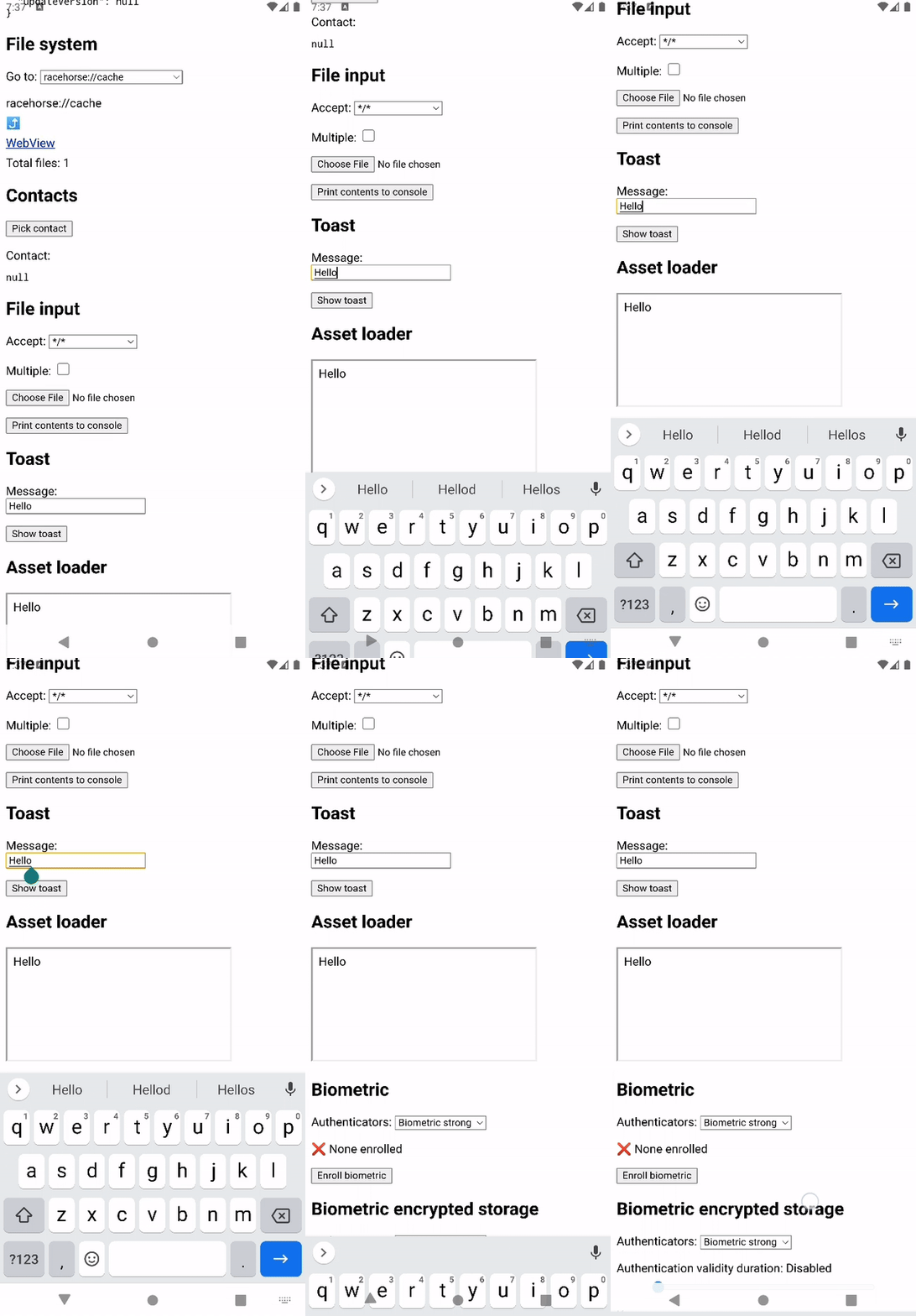
the software keyboard and notifies about keyboard animations.
Initialize the plugin in your Android app:
import org.racehorse.KeyboardPlugin

EventBus.getDefault().register(KeyboardPlugin(activity).apply { enable() })
Synchronously read the keyboard height, or show/hide the keyboard:
import { keyboardManager } from 'racehorse';

keyboardManager.showKeyboard();
// ⮕ true

keyboardManager.getKeyboardHeight();
// ⮕ 630
Subscribe to the keyboard manager to receive notifications when a keyboard animation starts:
keyboardManager.subscribe(animation => {
  // Handle the started animation here.
});
If you are using React, use the
useKeyboardAnimation
hook to subscribe to keyboard animations from a component:
import { useKeyboardAnimation } from '@racehorse/react';

useKeyboardAnimation((animation, signal) => {
  // Signal is aborted if the animation is cancelled.
});
Use runAnimation to run the
animation. For example, if your
app is rendered edge-to-edge, you can animate
the bottom padding to compensate for the height of the keyboard.
import { useKeyboardAnimation, runAnimation } from '@racehorse/react';

useKeyboardAnimation((animation, signal) => {
  // Run the animation in sync with the native keyboard animation.
  runAnimation(
    animation,
    {
      onProgress(animation, fraction, percent) {
        const keyboardHeight = animation.startValue + (animation.endValue - animation.startValue) * fraction;

        document.body.style.paddingBottom = keyboardHeight + 'px';
      },
    },
    signal
  );
});
You may also want to scroll the window to prevent the focused element from being obscured by the keyboard. Use
scrollToElement to animate
scrolling in sync with the keyboard animation:
import { useKeyboardAnimation, scrollToElement } from '@racehorse/react';

useKeyboardAnimation((animation, signal) => {
  // Ensure there's an active element to scroll to.
  if (document.activeElement === null && !document.hasFocus()) {
    return;
  }

  scrollToElement(document.activeElement, {
    // Scroll animation will have the same duration and easing as the keyboard animation.
    animation,
    paddingBottom: animation.endValue,
    signal,
  });
});
Check out the example app for real-world keyboard animation handling.
NetworkManager enables network
connection monitoring support.
Initialize the plugin in your Android app:
import org.racehorse.NetworkPlugin

val networkPlugin = NetworkPlugin(activity)

EventBus.getDefault().register(networkPlugin)
Enable the plugin when the app resumes and disable it when the app pauses:
fun onResume() {
    super.onResume()
    networkPlugin.enable()
}

fun onPause() {
    super.onPause()
    networkPlugin.disable()
}
Synchronously read the network connection status or subscribe to changes:
import { networkManager } from 'racehorse';

networkManager.getNetworkStatus().isConnected;
// ⮕ true

networkManager.subscribe(status => {
  // React to network status changes
});
If you are using React, refer to the
useNetworkStatus
hook, which re-renders a component when the network status changes.
import { useNetworkStatus } from '@racehorse/react';

const status = useNetworkStatus();

status.isConnected;
// ⮕ true

status.type;
// ⮕ 'wifi'NotificationsManager
provides access to Android system notification status.
Initialize the plugin in your Android app:
import org.racehorse.NotificationsPlugin

EventBus.getDefault().register(NotificationsPlugin(activity))
Synchronously check that notifications are enabled:
import { notificationsManager } from 'racehorse';

notificationsManager.areNotificationsEnabled();
// ⮕ truePermissionsManager
allows checking and requesting application permissions.
Initialize the plugin in your Android app:
import org.racehorse.PermissionsPlugin

EventBus.getDefault().register(PermissionsPlugin(activity))
Check that a permission is granted, or ask for permissions:
import { permissionsManager } from 'racehorse';

permissionsManager.isPermissionGranted('android.permission.ACCESS_WIFI_STATE');
// ⮕ true

permissionsManager.askForPermission('android.permission.CALL_PHONE');
// ⮕ Promise<boolean>Post a custom
NoticeEvent in
onWindowFocusChanged:
package com.myapplication

import org.greenrobot.eventbus.EventBus
import org.racehorse.NoticeEvent

class WindowFocusChangedEvent(val hasFocus: Boolean) : NoticeEvent

class MainActivity {

    // Don't forget to init Racehorse here

    override fun onWindowFocusChanged(hasFocus: Boolean) {
        EventBus.getDefault().post(WindowFocusChangedEvent(hasFocus))
    }
}
In the web app, subscribe to this event and apply a blur filter to the body:
eventBridge.subscribe('com.myapplication.WindowFocusChangedEvent', payload => {
  document.body.style.filter = payload.hasFocus ? 'none' : 'blur(30px)';
});
Now your application will appear blurred when it moves to the background and unblurred when it returns to the foreground.